Showing posts with label Computers. Show all posts

Windows 7

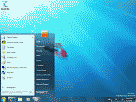
Microsoft has worked under the code name Windows 7 on the successor of Windows Vista since approximately August 2007. The new operating system is based on Windows Vista and comes with new programme functions and improvements in detail. Steve Ballmer talked with a keynote onto the Gartner Symposium IT 2008 on October 16th, 2008, that Windows 7 one Windows Vista is but with numerous improvements. It shall be release after 2.5 years development time as a new Windows major release. The version number is not increased to 7.0 but to 6.1 for compatibility reasons. Through this Microsoft wants to prevent problems with programmes which checks the version number. Microsoft introduced the first Windows 7 test release with the build 6801 on the Professional Developer Conference in Los Angeles on October 28th, 2008. Basic data of Windows 7:
64 bit and 32 bit version
Kernel is based on "MinWin", introduced by Eric Traut in October 2007
new graphic system
improved language and handwriting recognition, useable over touch screen
new user interface
new program menues, with a recent list of the latests file and program functions used
Windows XP mode (Windows 7 Professional or higher)The first Windows 7 Release Candidate build 7100 appeared on April 21st, 2009. The operating system can be tested for 30 days without product activation. Microsoft refer as minimum requirements a computer with 1 ghz CPU, 1 gbyte main memory, 16 gbyte free storage and a DirectX 9 graphics card with a WDDM 1.0 driver or higher. Microsoft cooperates closely with Intel so that Windows 7 can use Hyper-threading still better. The Release Candidate contains the Windows Media Player 12, Internet Explorer 8 and the Windows Defender 6.1. Optionally the Windows XP Mode (XPM) can be downloaded from the Microsoft web site for testing purpose. This promises users of Windows 7 Professional and higher to start some older productive Windows XP applications directly from the Windows 7 desktop. To this an configured, virtual image of Windows XP is installed with Windows Virtual PC. Requirement for the hardware virtualization is a computer with Intel-VT or AMD-V processor. Otherwise the XPM will not start. For a fast working are 2 gbyte of main memory and additional 15 gbyte of free hard disk storage recommended.

Windows Vista

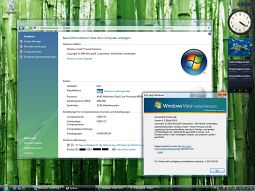
Microsoft published the new product name Vista for this new Windows Version on an event in the USA/Atlanta on 21-07-2005. This Windows Version was known under the development name Longhorn before. The installation of Vista is based on WIM (Windows Imaging format), a file-based Image Format. It compresses the contained files and can be used for the installation on several platforms from the same Image. The image on the DVD contains a pre-installation of the system directories of Windows in the Windows Imaging (.WIM) file and adapts to the hardware configuration. With the User State Migration Toolkit the user defined settings can be imported of Windows 2000 and Windows XP. An advantage of WIM images is the easy integration of new drivers and updates, the LZX compression provides the smallest file size and XPress compression the fastest compression. The installation DVD of Windows Vista already contains about 16,000 drivers, the Windows update offers further 14,000 drivers for supported hardware. There is no licence key during the Windows Vista installation necessary, in this case it start with a 30 days trial license. After this time period the activation of the operating system is inevitably with the Internet Explorer, after the start-up Windows opens only this window for activation. Windows Vista contains DRM technology for the playback of protected multimedia files. Windows Vista (Windows version 6.0) contains the new user interface Aero. The start menu has a round start button without text now. New characteristics are three-dimensional effects, the transparent representation and freely scalable symbols. To see all visual features a graphiccard with DirectX 9.0 support is required. The known interface of Windows XP can be activated alternatively. The PC should at least contain a processor with 2 ghz, 512 mbyte RAM and at least 10 GByte of free harddisk storage. Developer take advance from the new graphic interface WPF (Windows Presentation Foundation) for the component-based development of 2D and 3D applications, WPF was designed under the code name Avalon. This framework supports the use of vector graphic for better scaling of applications on the display screen. For better Security Microsoft has integrated useful functions. The automatic update of the operating system provides the installation of new patches. When required the function UAC (User Account Control) asks the user whether it shall unlock unlimited user rights for the execution of a program. InfoCards makes the automated log-on and register of login informations for web pages possible. Windows Defender extends Windows by an spyware/malware protection, the Windows Firewall monitors connections which are incoming and outgoing. The performance is for a shorter reactivation time of Windows with the active programmes after a cold start of the PC improved by Windows SuperFetch. Windows ReadyBoostprovides an additional working memory on USB flash devices and can be combined with SuperFetch. The USB flash storage has much faster access times than hard disks. Preinstalled Programs by Microsoft were updated. The Internet Explorer 7 contains a Phishing Filter opposite to the previous version and supports Tabbed Browsing. The navigation in the Windows Explorer was revised, the address bar is equipped with single-line option fields displays for faster navigation in the directories on the file system. The search after files is possible with the use of many filters. Outlook Express was renamed in Windows Mayl and got version 7.0 now. The functions of the Windows Media Player 11 and Windows Movie Maker were refined. Microsoft announced the product versions for Windows Vista on 2006-02-26. Altogether there are 6 versions which are different in product functions and price. The same characteristic is the maximum support of 4 gbyte RAM for all 32-bit versions. For Windows Vista 64-bit and Home Basic are already 8 gbyte supported, Home Premium 16-gbyte, for the business variants and Vista Ultimate more than 128 gbyte RAM. The Windows Vista Starter Edition is targeted to technological developing countries at a low price and fewer program functions. Only the Vista Basic graphical interface and 32-bit version is available, the number of simultaneously executable applications is limited to 3.Windows Vista Home Basic for private users contains only the simple user interface and cames without different new effects of the Aero interface. A new function is the content and access control with protection of children and young people for the restricted use of Windows and display of web sites. The next higher version is Windows Vista Home Premium which can also show the new Windows Aero interface. Aero offers a simpler search for files in the audio and video format. Additional functions belongs to the Windows Media Center to convert the computer into a multimedia player. The field of application is enhanced by the Windows Tablet PC technique like hand character recognition, support of digital pins and finger touch recognition. The storage medium DVD can be described over the integrated burning function with data, the authoring software helps at the creation of own films. The Basic version for enterprise use forms the Windows Vista Business edition. The Windows Aero user interface can be activated, Windows Tablet PC technique like hand character recognition is also included. The administration of many documents is improved, file encrypting and the Encrypting File System (EFS) are important security extensions. For mobile use are designed the PC to PC synchronization and other mobile functions. The domain logon and group guidelines is part of the network component. Data security is provided by the image based backup. Windows Vista Enterprise has the same functions as the Business Edition and contains in addition Windows BitLocker for hard disk encrypting and Virtual PC Express for the compatibility to older Windows applications by the creation of a virtual environment. The subsystem for UNIX allows the execute of UNIX applications without porting. Windows Vista Ultimate contains all features of the other versions but is the most expensive Edition. Microsoft published the first Service Pack for Windows Vista in March 2008. It is distributed over the automatic Windows Update one month later. If Vista is not activated the further use is possibly now without restrictions, but message windows remember the missing activation. Major changes are the support of UEFI, DirectX 10.1, the new file system exFAT for flash storage and optimizations of the performance. The use of network drives, handling of large pictures as well as file operations is faster done now. Device drivers were updated and the API of the kernel protection for Windows 64 bit is opened now for security service providers. The installation of Windows updates is accelerated and the number of UAC reports with directories reduced. In July 2008 different analysts like Forrester, King Research and others reported that many big enterprises want not to migrate from Windows XP to Windows Vista but to wait for the successor Windows 7. From 2.300 enterprises work after a survey less then 10% with Vista (Forrester). Possible reasons are problems with the compatibility of existing applications and scarce investments for IT with other priorities. Microsoft published at the 26.05.2009 the second service pack for Windows Vista for the download. The download size is depending of the chosen language and architecture with at least 302 MByte, via automatic update at least with 43 MByte. The Service Pack 1 is required for installation. The installation packages exist separately for 32-bit, 64-bit and IA64 processor architectures. 836 issues became fixed for Windows Vista is and Server 2008. The most important changes include:
improved program compatibility
improved power management
Windows Search 4.0
Support for 64-bit CPU VIA Technologies
Burning Blu-ray media
Improved support for eSATA drives
Bluetooth stereo headphones now possible
RSS feed sidebar improved in performance and response times
Limit of 10 half open, outgoing TCP connections removed

Windows Server 2003


The operating system was published as a successor of Windows server 2000 in April 2003. Windows Server 2003 carries the internal version number 5.2. The 32-bit version of the Datacenter Edition of Windows Server 2003 can supported by the Physical Address Extension (PAE) up to 32 processors and 64 gbyte RAM in a server. This operating system is used on IBM servers of the series x445 and x455, for example. The followingservices are started after the installation of Windows Server 2003 Enterprise Edition. Microsoft introduced the 64-bit versions of Windows XP and Windows Server 2003 on the WinHEC 2005 event in Seattle in April 2005. The service pack 1 for Windows Server 2003 is already integrated, the operating system is available in the variants Standard, Enterprise and Datacenter edition. The advantages in the 64 bit variant lie int othe architecture obtained security functions for the increase of the safety in the running operating system on hardware level. The Patch Guard is a function for the protection of the system components from applications be able to destabilize the system. For the addressing of the main memory at present are used only 40-bits for a virtual addressable storage of 16-tbyte. The compatibility to existing 32-bit applications remains unchanged. Windows Server 2003 Web Edition - service for the delivery and store of web pages - till 2 CPU and 2 gbyte RAM supported - supports .NET framework, IIS 6, ASP.NET, Network Load Balancing, IPv6, Distributed file system (Dfs), Encrypting File System (EFS), Shadow Copy Restore, print services for Unix - can not be used as domain controller Windows Server 2003 Standard Edition - intended purpose for small till medium-sized enterprises - till 2 CPU and 4 gbyte RAM supported - supports the services of the Web Edition, extended by enterprise UDDI services, Internet Authentication services (IAS), removable and remote storage, Fax service, services for Macintosh, Remote Installation Services (RIS), Windows Media Services (WMS), Public Key Infrastructure (PKI), Certificate Services, Smart Card support and Terminal Services Windows Server 2003 Enterprise Edition - designed for high requirements - at least 550 mhz processor, 256 mbyte RAM, 2 gbyte free storage - up to 8 processors and 32 gbyte RAM - support for 8-nodes combined cluster - also as 64-bit version available - supports the services of the Standard Edition, extended by Metadirectory Services Support (MMS), Terminal Services Session Directory functions, support for hot-add memory and Non-Uniform memory access (NUMA) - Server functions are the role as a file server, print server, application server (for IIS 6.0, ASP.NET), mail server (for POP3, SMTP), terminal server, RAS/VPN server, domain controller for Active directory, DNS server, DHCP server, Streaming Media server, WINS server Windows Server 2003 Datacenter Edition - intended purpose for highest performance, availability and scalability - up to 32 processors and 64 gbyte RAM - up to 8 node combined cluster - also as 64-bits version available - same services of the Enterprise Edition but without Metadirectory Services Support (MMS) and Internet Connection Firewall, supports Datacenter Program (DCP) The Service Pack 1 (SP1) was published at the end of March 2005 and improved the reliability and safety of the operating system with light increased performance. Functions which are already in the Service Pack 2 for Windows XP contained find the way to server operating systems now. The Windows firewall is installed (deactivated), the Internet Explorer extended by the pop-up blocker and the Automatic Update can be activated optionally. With the Data Execution Prevention (DEP) is the executing of programme code in not privileged memory areas prevented. The Security Configuration Wizard (SCW) helps at the configuration of safety guidelines with querys. In February 2006 the functions extended Windows servers 2003 R2 came on the market. With this second version the administration of local and remote resources gets more efficient. Moreover, it offers a scalable web platform and harmonizes with existing UNIX systems in the network. The Windows Servers 2003 R2 Datacenter Edition and Enterprise Edition offer a more dynamic licensing model for the customers to be able to profit better from the server virtualization. The replication services were revised and can simplify the file exchange with other servers. The Active Directory Application Mode (ADAM) is integrated directly now for for a light weight directory service for network applications. The Active Directory Federation Services connects directory services with each other about web services. The services for UNIX (SfU) provide the interoperability with existing Linux/UNIX systems. The .NET runtime 2.0 is included. The Service Pack 2 (SP2) for Windows Server 2003 was released at the end of March 2007. Contained are new functions and patches for the operating system. The Microsoft Management Console (MMC) offers new and improved command line tools in the new version. The performance with SQL servers and use of Windows virtualization was improved. The secure Wireless Protected Access 2 (WPA2) is supported now. The Scalable Networking Pack (SNP) offers an efficient scalability of network based applications.

Computer Tips and Tricks

Computer training is possible through formal education like online Computer tips, Networking Tips , Hardware Tips , Registry Tricks and other computer science programs also.
It is no great mystery that major shifts in cultural and societal processes are marked with new advances in technology. This is also true of information technology. The printing press, the camera, the telephone, the computer, the Internet and the cell phone, are all inextricably linked to major changes in human culture. The printing press is linked to the rise of social movements. The photograph and telephone are linked to the birth of the Industrial Revolution. The advent of early computers and television coincides with the first steps towards global consortiums like the League of Nations. Information media changes how we perceive the world around us. The following profiles are two examples of current media that are expected to make a difference in how information is generated and perceived.
ComputerBigLab.com has been designed as a free introductory level, online computer related website, providing tutorials on computer hardware, software, operating systems, and basic troubleshooting, IT glossary, IT certifications and IT interview questions and answers.If you just want to learn more about your computer's hardware, networking, Certifications and other IT related information, here's a good place to start! Read the tutorials, then try the exercises and computer Tests provided. If you have trouble with the review questions, tutorials or any other please let us know.
The computer computer tips, Interview questions, networking and Free tests may also be helpful for those preparing for Certifications exams, preparing for the interview of computer related jobs, and for students, teachers and the IT professionals.ComputerBigLab.com intended to help all the students, teachers, & other computer / IT professionals of the Computer Science & Computer Technology Field. We have sorted out much information to help them all.We are continuously updating our website. If you have any questions, suggestions and feedback please let us know.
We can improve our website in a very progressive way with your help. Your feedback is always welcomed.
Computer Science and Computer Technology has become the vital part of the education throughout the world.
Computer training is possible through formal education attending one of the many colleges or university offering both IT and computer science programs.
The study skills lesson plans should be so structured that it is dynamic and capable of being altered to suit the student’s growing and changing needs. This helps to make the students more focused in their approach, as they are continually involved in the process of change. After all the students are the ultimate beneficiaries. This however does not mean that the content can be ignored. There should be adequate coverage of any topic so that a certain degree of mastery is indicated. Thanks to the technology available along with networking anyone across the globe is now able to access any online hardware around the globe, you can even play games off your phones through the advances in wireless technology.
Whatever study skills lesson plans are drawn up, remember there is no end to it. All plans have only beginnings, for human beings are unique, and it is this uniqueness, which is conceptually infinite. Whatever plan we draw up will be inadequate, but we do require a basic framework from which to operate.

Storage

1952

IBM 726 Dual Tape Drives
Magnetic tape allows for inexpensive mass storage of information and so is a key part of the computer revolution. The IBM 726 was one of the first practical high-speed magnetic tape systems for electronic digital computers. Announced on May 21, 1952, the system used a unique ‘vacuum channel’ method of keeping a loop of tape circulating between two points allowing the tape drive to start and stop the tape in a split-second. The Model 726 was first sold with IBM’s first electronic digital computer the Model 701 and could store 2 million digits per tape—an enormous amount at the time. It rented for $850 a month.
1956

IBM's Rey Johnson in front of RAMAC 350 Disk File
The era of magnetic disk storage dawned with IBM´s shipment of a 305 RAMAC to Zellerbach Paper in San Francisco. The IBM 350 disk file served as the storage component for the Random Access Method of Accounting and Control. It consisted of 50 magnetically coated metal platters with 5 million bytes of data. The platters, stacked one on top of the other, rotated with a common drive shaft.
1961

The IBM 1301 Disk Storage System
IBM 1301 Disk Storage Unit is released. The IBM 1301 Disk Drive was announced on June 2nd, 1961 for use with IBM’s 7000-series of mainframe computers. Maximum capacity was 28 million characters and the disks rotated at 1,800 R.P.M. The 1301 leased for $2,100 per month or could be purchased for $115,500. The drive had one read/write arm for each disk as well as flying heads, both of which are still used in today’s disk drives.
1962

Tom Kilburn in front of Manchester Atlas console
Virtual memory emerged from a team under the direction of Tom Kilburn at the University of Manchester. Virtual memory permitted a computer to use its storage capacity to switch rapidly among multiple programs or users and is a key requirement for timesharing.

Four Views of the IBM 1311 Including Removable Disk Pack
IBM 1311 Disk Storage Drive is announced. Announced on October 11, 1962, the IBM 1311 was the first disk drive IBM made with a removable disk pack. Each pack weighed about ten pounds, held six disks, and had a capacity of 2 million characters. The disks would rotate at 1,500 RPM and were accessed by a hydraulic actuator with one head per disk. [storage] The 1311 offered some of the advantages of both tapes and disks.
1967

The IBM Photo Digital Storage System, code-named Cypress
IBM 1360 Photo-Digital Storage System is delivered. In 1967, IBM delivered the first of its photo-digital storage systems to Lawrence Livermore National Laboratory. The system could read and write up to a trillion bits of information—the first such system in the world.. The 1360 used thin strips of film which were developed with bit patterns via a photographic developing system housed in the machine. The system used sophisticated error correction and a pneumatic robot to move the film strips to and from a storage unit. Only five were built.
1971

IBM 23FD 8
An IBM team, originally led by David Noble, invented the 8-inch floppy diskette. It was initially designed for use in loading microcode into the controller for the "Merlin" (IBM 3330) disk pack file. It quickly won widespread acceptance as a program and data-storage medium. Unlike hard drives, a user could easily transfer a floppy in its protective jacket from one drive to another.
1978

Original Shugart SA400 5 1/4
The 5 1/4" flexible disk drive and diskette were introduced by Shugart Associates in 1976. This was the result of a request by Wang Laboratories to produce a disk drive small enough to use with a desktop computer, since 8" floppy drives were considered too large for that purpose. By 1978, more than 10 manufacturers were producing 5 1/4" floppy drives.
1980

Shugart ST506 5MB Hard Disk Drive
Seagate Technology created the first hard disk drive for microcomputers, the ST506. The disk held 5 megabytes of data, five times as much as a standard floppy disk, and fit in the space of a floppy disk drive. The hard disk drive itself is a rigid metallic platter coated on both sides with a thin layer of magnetic material that stores digital data.
Seagate Technology grew out of a 1979 conversation between Alan Shugart and Finis Conner, who had worked together at Memorex. The two men decided to found the company after developing the idea of scaling down a hard disk drive to the same size as the then-standard 5 1/4-inch floppies. Upon releasing its first product, Seagate quickly drew such big-name customers as Apple Computer and IBM. Within a few years, it had sold 4 million units.

IBM 3380 Disk System
Hard disks are an essential part of the computer revolution, allowing fast, random access to large amounts of data. IBM announced its most successful mainframe hard disk (what IBM called a “Direct Access Storage Device (DASD)” in June of 1980, actually shipping units the following year. The 3380 came in six models initially (later growing to many more) and price at time of introduction ranged from $81,000 to $142,200. The base model stored 2.5 GB of data, later models extended this to 20GB. IBM sold over 100,000 3380s, generating tens of billions of dollars in revenue making the 3380 one of IBM’s most successful products of all time.
1981

Sony 3 1/2
Sony introduced and shipped the first 3 1/2" floppy drives and diskettes in 1981. The first signficant company to adopt the 3 1/2" floppy for general use was Hewlett-Packard in 1982, an event which was critical in establishing momentum for the format and which helped it prevail over the other contenders for the microfloppy standard, including 3", 3 1/4", and 3.9" formats.
1983

Able to hold 550 megabytes of prerecorded data, CD-ROMs grew out of music Compact Disks (CDs). The first general-interest CD-ROM product released after Philips and Sony announced the CD-ROM in 1984 was "Grolier´s Electronic Encyclopedia," which came out in 1985. The 9 million words in the encyclopedia only took up 12 percent of the available space. The same year, computer and electronics companies worked together to set a standard for the disks so any computer would be able to access the information.

Original Bernoulli Box
The Bernoulli Box is released. Using a special cartridge-based system that used hard disk technology, the Bernoulli Box was a type of removable storage that allowed people to move large files between computers when few alternatives (such as a network) existed. Allowing for many times the amount of storage afforded by a regular floppy disk, the cartridges came in capacities ranging from 5MB to 230MB.
1984

IBM 3480 Cartridge Tape System
Magnetic tape allows for inexpensive mass storage of information and so is a key part of the computer revolution. Announced in March 1984, IBM’s new 3480 cartridge tape system sought to replace the traditional reels of magnetic tape in the computer center with a 4” x 5” cartridge that held more information (200MB) and offered faster access to it. IBM withdrew the system in 1989 but the new format caught on with other computer makers who began making 3480-compatible storage systems for several years after that, offering increased storage capacity in the same physical format.
1994
Early Zip Drive with Disks
The Iomega Zip Disk is released. The initial Zip system allowed 100MB to be stored on a cartridge roughly the size of a 3 ½ inch floppy disk. Later versions increased the capacity of a single disk from 100Mbytes to 2GB.

Networking

1960

AT&T designed its Dataphone, the first commercial modem, specifically for converting digital computer data to analog signals for transmission across its long distance network. Outside manufacturers incorporated Bell Laboratories´ digital data sets into commercial products. The development of equalization techniques and bandwidth-conserving modulation systems improved transmission efficiency in national and global systems.


1964

Online transaction processing made its debut in IBM´s SABRE reservation system, set up for American Airlines. Using telephone lines, SABRE linked 2,000 terminals in 65 cities to a pair of IBM 7090 computers, delivering data on any flight in less than three seconds.


1966

John van Geen of the Stanford Research Institute vastly improved the acoustically coupled modem. His receiver reliably detected bits of data despite background noise heard over long-distance phone lines. Inventors developed the acoustically coupled modem to connect computers to the telephone network by means of the standard telephone handset of the day.

1970
Citizens and Southern National Bank in Valdosta, Ga., installed the country´s first automatic teller machine.

Computer-to-computer communication expanded when the Department of Defense established four nodes on the ARPANET: the University of California Santa Barbara and UCLA, SRI International, and the University of Utah. Viewed as a comprehensive resource-sharing network, ARPANET´s designers set out with several goals: direct use of distributed hardware services; direct retrieval from remote, one-of-a-kind databases; and the sharing of software subroutines and packages not available on the users´ primary computer due to incompatibility of hardware or languages.

1971
Ray Tomlinson in 2001
The first e-mail is sent. Ray Tomlinson of the research firm Bolt, Beranek and Newman sent the first e-mail when he was supposed to be working on a different project. Tomlinson, who is credited with being the one to decide on the "@" sign for use in e-mail, sent his message over a military network called ARPANET. When asked to describe the contents of the first email, Tomlinson said it was “something like "QWERTYUIOP"”
1972
Wozniak´s "blue box"
Wozniak´s "blue box", Steve Wozniak built his "blue box" a tone generator to make free phone calls. Wozniak sold the boxes in dormitories at the University of California Berkeley where he studied as an undergraduate. "The early boxes had a safety feature — a reed switch inside the housing operated by a magnet taped onto the outside of the box," Wozniak remembered. "If apprehended, you removed the magnet, whereupon it would generate off-frequency tones and be inoperable ... and you tell the police: It´s just a music box."
1973
Ethernet
Robert Metcalfe devised the Ethernet method of network connection at the Xerox Palo Alto Research Center. He wrote: "On May 22, 1973, using my Selectric typewriter ... I wrote ... "Ether Acquisition" ... heavy with handwritten annotations — one of which was "ETHER!" — and with hand-drawn diagrams — one of which showed `boosters´ interconnecting branched cable, telephone, and ratio ethers in what we now call an internet.... If Ethernet was invented in any one memo, by any one person, or on any one day, this was it."Robert M. Metcalfe, "How Ethernet Was Invented", IEEE Annals of the History of Computing, Volume 16, No. 4, Winter 1994, p. 84.
1975

Telenet, the first commercial packet-switching network and civilian equivalent of ARPANET, was born. The brainchild of Larry Roberts, Telenet linked customers in seven cities. Telenet represented the first value-added network, or VAN — so named because of the extras it offered beyond the basic service of linking computers.
1976

The Queen of England sends first her e-mail. Elizabeth II, Queen of the United Kingdom, sends out an e-mail on March 26 from the Royal Signals and Radar Establishment (RSRE) in Malvern as a part of a demonstration of networking technology.
1979
The Shockwave Rider
John Shoch and Jon Hupp at the Xerox Palo Alto Research Center discover the computer "worm," a short program that searches a network for idle processors. Initially designed to provide more efficient use of computers and for testing, the worm had the unintended effect of invading networked computers, creating a security threat.Shoch took the term "worm" from the book "The Shockwave Rider," by John Brunner, in which an omnipotent "tapeworm" program runs loose through a network of computers. Brunner wrote: "No, Mr. Sullivan, we can´t stop it! There´s never been a worm with that tough a head or that long a tail! It´s building itself, don´t you understand? Already it´s passed a billion bits and it´s still growing. It´s the exact inverse of a phage — whatever it takes in, it adds to itself instead of wiping... Yes, sir! I´m quite aware that a worm of that type is theoretically impossible! But the fact stands, he´s done it, and now it´s so goddamn comprehensive that it can´t be killed. Not short of demolishing the net!" (247, Ballantine Books, 1975).

USENET established. USENET was invented as a means for providing mail and file transfers using a communications standard known as UUCP. It was developed as a joint project by Duke University and the University of North Carolina at Chapel Hill by graduate students Tom Truscott, Jim Ellis, and Steve Bellovin. USENET enabled its users to post messages and files that could be accessed and archived. It would go on to become one of the main areas for large-scale interaction for interest groups through the 1990s.

Richard Bartle and Roy Trubshaw circa 1999
The first Multi-User Domain (or Dungeon), MUD1, is goes on-line. Richard Bartle and Roy Trubshaw, two students at the University of Essex, write a program that allows many people to play against each other on-line. MUDs become popular with college students as a means of adventure gaming and for socializing. By 1984, there are more than 100 active MUDs and variants around the world.
1983

The ARPANET splits into the ARPANET and MILNET. Due to the success of the ARPANET as a way for researchers in universities and the military to collaborate, it was split into military (MILNET) and civilian (ARPANET) segments. This was made possible by the adoption of TCP/IP, a networking standard, three years earlier. The ARPANET was renamed the “Internet” in 1995.
1985

The modern Internet gained support when the National Science foundation formed the NSFNET, linking five supercomputer centers at Princeton University, Pittsburgh, University of California at San Diego, University of Illinois at Urbana-Champaign, and Cornell University. Soon, several regional networks developed; eventually, the government reassigned pieces of the ARPANET to the NSFNET. The NSF allowed commercial use of the Internet for the first time in 1991, and in 1995, it decommissioned the backbone, leaving the Internet a self-supporting industry.The NSFNET initially transferred data at 56 kilobits per second, an improvement on the overloaded ARPANET. Traffic continued to increase, though, and in 1987, ARPA awarded Merit Network Inc., IBM, and MCI a contract to expand the Internet by providing access points around the country to a network with a bandwidth of 1.5 megabits per second. In 1992, the network upgraded to T-3 lines, which transmit information at about 45 megabits per second.
Stewart Brand and Larry Brilliant lecturing on the Well, 1999
The Whole Earth 'Lectronic Link (WELL) is founded. Stewart Brand and Larry Brilliant started an on-line Bulletin Board System (BBS) to build a “virtual community” of computer users at low cost. Journalists were given free memberships in the early days, leading to many articles about it and helping it grow to thousands of members around the world.
1988
ARPANET worm
Robert Morris´ worm flooded the ARPANET. Then-23-year-old Morris, the son of a computer security expert for the National Security Agency, sent a nondestructive worm through the Internet, causing problems for about 6,000 of the 60,000 hosts linked to the network. A researcher at Lawrence Livermore National Laboratory in California discovered the worm. "It was like the Sorcerer´s Apprentice," Dennis Maxwell, then a vice president of SRI, told the Sydney (Australia) Sunday Telegraph at the time. Morris was sentenced to three years of probation, 400 hours of community service, and a fine of $10,050.Morris, who said he was motivated by boredom, programmed the worm to reproduce itself and computer files and to filter through all the networked computers. The size of the reproduced files eventually became large enough to fill the computers´ memories, disabling them.
1990
Berners-Lee proposal
The World Wide Web was born when Tim Berners-Lee, a researcher at CERN, the high-energy physics laboratory in Geneva, developed HyperText MarkupLanguage. HTML, as it is commonly known, allowed the Internet to expand into the World Wide Web, using specifications he developed such as URL (Uniform Resource Locator) and HTTP (HyperTextTransfer Protocol). A browser, such as Netscape or Microsoft Internet Explorer, follows links and sends a query to a server, allowing a user to view a site.Berners-Lee based the World Wide Web on Enquire, a hypertext system he had developed for himself, with the aim of allowing people to work together by combining their knowledge in a global web of hypertext documents. With this idea in mind, Berners-Lee designed the first World Wide Web server and browser — available to the general public in 1991. Berners-Lee founded the W3 Consortium, which coordinates World Wide Web development.
1993

Screen Capture from Original Mosaic Browser
The Mosaic web browser is released. Mosaic was the first commercial software that allowed graphical access to content on the internet. Designed by Eric Bina and Marc Andreessen at the University of Illinois’s National Center for Supercomputer Applications, Mosaic was originally designed for a Unix system running X-windows. By 1994, Mosaic was available for several other operating systems such as the Mac OS, Windows and AmigaOS.


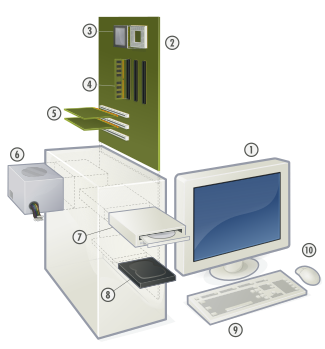
Personal computer hardware


Motherboard
Components directly attached to the motherboard include:
The central processing unit (CPU) performs most of the calculations which enable a computer to function, and is sometimes referred to as the "brain" of the computer. It is usually cooled by a heat sink and fan.
The chipset mediates communication between the CPU and the other components of the system, including main memory.
RAM Stores all running processes (applications) and the current running OS. RAM Stands for Random Access Memory
The BIOS includes boot firmware and power management. The Basic Input Output System tasks are handled by operating system drivers.
Internal Buses connect the CPU to various internal components and to expansion cards for graphics and sound.
Current
The northbridge memory controller, for RAM and PCI Express
PCI Express, for expansion cards such as graphics and physics processors, and high-end network interfaces
PCI, for other expansion cards
SATA, for disk drives
Obsolete
ATA (superseded by SATA)
AGP (superseded by PCI Express)
VLB VESA Local Bus (superseded by AGP)
ISA (expansion card slot format obsolete in PCs, but still used in industrial computers)
External Bus Controllers support ports for external peripherals. These ports may be controlled directly by thesouthbridge I/O controller or based on expansion cards attached to the motherboard through the PCI bus.
USB
FireWire
eSATA
SCSI

Lost your Windows password? Here’s what you can do to get around

Due to the security features built into Windows XP, it is virtually impossible to get back into the system without the password.

You have several options to try and get around this problem.

If you have access to another user account with administrator rights, you can use that account to change the password of the account that is locked out. You can also use the default Administrator account that is built into Windows XP.

First you need to boot the system into Safe Mode.

  1. Restart your system.
  2. When you see the blue screen, press the ( F8 ) key about 3 times a second.
  3. You should get the Windows startup menu. Use the (Up or Down) arrow keys to highlight (SafeMode).
  4. Press (Enter) on (Safe Mode), then press (Enter) on (Windows XP).
  5. The system should boot to Safe Mode.

Once you are at the Account Log on Screen, click on the icon for the user account with administrator rights, or click on the icon for the administrators account.

Note: For Home the Administrator account isn’t normally shown & in Safe Mode you have to press Ctrl+Alt+Delete keys twice to show. For PRO you can do this in normal mode

When the system has booted to the desktop, use the following steps to change the accounts password.

  1. Click Start, Control Panel, Administrative Tools.
  2. Click Computer Management.
  3. Double click Local Users and Groups, double click the folder Users.
  4. Right click on the account name that is locked out, and click on Set Password.
  5. You may get a warning message about changing the password, simply click proceed.
  6. Leave the New Password box blank, also leave the Confirm Password box blank.
  7. Click OK, and OK again.
  8. Then close all Windows, reboot the system and try to log in.

There are also applications that can recover the password for you.

If the above information does not help in recovering the password, the only option left is to format the hard drive then reinstall Windows and the system software

Computer Reboot automatically and gives Stop Error 0x0000007E, BSOD error

Stop Error 0x0000007E After SP3 is installed , Gives BSOD Stop Error for a second and reboot again.Problem after installation of Windows XP Service Pack 3. Computer Restarts after start up, it prompts for a reboot. This process will continue unless the computer is started in Safe Mode. In Safe mode the computer boots correctly and everything seems fine.


This problem only appears on some systems after upgrading to SP3. This particular problem on systems that have been prepared with SysPrep. The sysprep image was created on an Intel based computer, and then the sysprep image is deployed on a Non-Intel system such as an AMD processor. In these cases, the registry entry for Intelppm is incorrectly set and causes the computer to go into a continuous reboot after the service pack has installed.

How Can I Solve This Problem?
Follow these steps to resolve this issue with the computer not booting correctly after SP3 is installed.


1) Start your computer in Safe Mode.
2) Click on Start, Run, and type REGEDIT and press Enter. This will open the Registry Editor.
3) Click the pluses(+) next to the following registry keys to navigate to the correct spot. HKEY_LOCAL_MACHINESYSTEMCurrentControlSetServicesIntelppm4) In the right hand column find the entry titled START and double-click on it
5) Change the number to 4 and click Ok
6) Close the Registry Editor
7) Shut down your computer and restart
This time the computer should restart normally and finish the installation of SP3.

Show Hidden Files and Folders not working?

Show Hidden Files and Folders not working?..... If we selecte the radio button “Show hidden files and folders” and then press Ok.. the changes would just disappear upon opening the dialog again. It was probably some virus attack after which the Windows registry was not being updated properly. So here is what methods to restore it back. There are so many methods to restore back the registry. If one method is not working, please try another one.

Method 1:

Go to registry editor by running regedit in the run box.
Go to this key:
HKEY_CURRENT_USER\Software\Microsoft\
Windows\CurrentVersion\Explorer\Advanced


In the right hand area, double click hidden and change the value to 1.

Now you’re all set to go. Check it in your tools menu if the changes have taken effect.

Method 2:

1. Click “Start” -> “Run…” (or press Windows key + R)
2. Type “regedit” and click “Ok”.
3. Find the key: HKEY_LOCAL_MACHINE\SOFTWARE\Microsoft\Windows\CurrentVersion\Explorer\
Advanced\Folder\Hidden\SHOWALL
4. Look at the “CheckedValue” key… This should be a DWORD key. If it isn’t, delete the key.
5. Create a new key called “CheckedValue” as a DWORD (hexadecimal) with a value of 1.
6. The “Show hidden files & folders” check box should now work normally. Enjoy!

Method 3:

1- Click Start –> Run –> regsvr32 /i browseui.dll –> enter

A confirmation message will appear like given below

2- Click Start –> Run –> regsvr32 /i shell32.dll

Wait for the confirmation and click OK.

regsvr32-shell.dll.png

regsvr32-shell.dll.png

Method 4:

If none of the above methods work, please download our Smart Virus Remover from here:

Show Hidden Files and Folders not working? Smart Virus Remover (652.8 KiB, 346,268 hits)


Using this Virus Remover please restore your Windows settings and your show hidden files and folders will be set to default.

Please spare a few moments from your precious time and tell us about your experiences.


How to Operate Mouse Pointer Without Mouse

You have Mouse Problem ?? No Problem

I will give you suggestion

Press Left Alt + Left Shift + Num Lock Button + Ok

with the help of Numeric Keypad e.g ( Press and Hold the following Keys )

 7   8    9   4        6   1   2    3 


For Normal Click Press 5

Default
Left Alt + Left Shift + Num Lock

Hide all drives from My Computer

This trick is provided by user sandeepak

For more user contributed tricks, check out the Forums

Note: The following trick is contributed by users. The information might have been copied and pasted as is from the users. Use it at your own risk.


How to Hide the drives(c:,d:,e:,...etc) in Ur Computer

This is a great trick you can play on your friends. To disable the display of local or networked drives when you click My Computer.

  1. Go to Start -> Run.
  2. Type regedit
  3. Now go to: HKEY_CURRENT_USER\Software\Microsoft\Windows\CurrentVersion\Policies\Explorer
  4. Now in the right pane, create a new DWORD item and name it NoDrives (it is case sensitive).
  5. Now modify it's value and set it to 3FFFFFF (Hexadecimal) .
  6. Now restart your computer.
  7. So, now when you click on My Computer, no drives will be shown(all gone...).


To enable display of drives in My Computer, simply delete this DWORD item that you created. Again restart your computer. You can now see all the drives again. Magic....

Hard Drive Cleanup

Wonder why your computer is getting so slow? One very common reason is your hard drive getting full because of the temporary files it's been saving. The very first and easy thing you can try is to clean up your hard drives. Windows keeps the temporary files within your hard drives, mainly to minimize the access time on the next use. However, these files get added up, and you'd notice your computer gets slower by time. A good practice is to perform a disk cleanup every once in a while to empty out those temporary storages. This normally improves your pc's performance.

The temporary files can be just some text files or images. Yes, images! whenever you visit a website, almost everything you see on the page is downloaded to your local hard drive, stored into the temporary storage as "temporary internet files". You might notice the next time you revisit the same page, the loading speed is somehow faster. This is because Windows reuses the temporary files which it found unchanged comparing to the page content. (no wonder why you've been told to refresh the page?)

Now these files can be large! since a file can be one big file that you downloaded off the internet. Then you've used it and thought you have deleted it... but in many cases, a copy of it is still there, as a temporary file.

Follow the instructions below to perform a disk cleanup for your hard drives, especially the one that has Windows systems files (normally "C" drive).


Use this trick at your own risks

  1. Launch the Disk Cleanup utility by either:
    - "Start" >> "Programs" >> "Accessories" >> "System Tools" >> "Disk Cleanup", or:
    - "Start" >> "Run", enter "cleanmgr" then press Enter.
  2. Select the disk you want to clean up from the drop-down box (i.e. "Local Disk C") and click "OK":


  3. Windows will calculate the space on your selected hard drive. This might take a few minutes depending on the size of your hard drive:


  4. Once Windows is done with the calculation, Disk Cleanup Utility displays. Here you can select which storages you want to clean up (under "Files to delete"). It doesn't hurt if you select them all when you really need free spaces on your hard drive. Notice the usage size on some of these storages might be huge:


  5. Click "OK" after your selections, then click "Yes" on the prompt.
  6. Disk Cleanup Utility starts to clean up your hard drive. This might take a while depending on the current usage level on the storage. During the cleanup process, your computer might be very slow, so give it some time. After cleanup your hard disks, perform a disk defragmentation would really help your pc run faster.

Show/Hide System Files and Folder using Registry

The instructions below would help you to:

  • Show (or hide) System files and folders using the Registry Editor.

Showing all files and folders is good in certain ways. Windows, by default, disables this option to keep the users from accidently deleting files. It is a good practice to hide those files and folders if you don't want to mess with them. They have been created that way for some good reasons. However, to many of us, specially the software programmers, it might be more convenient to work with files/folders when we have them all displayed.

IMPORTANT This article contains information about registry modification. Modifying the registry incorrectly might cause critical problems to your computer. Make sure you understand the registry and back it up before modifying it.

IMPORTANT The System files and folders are set to be hidden by Windows defaults to keep users from accidently remove them. Deleting system files or folders could cause critical problems on the computer. So be aware when you work on the files/folders if you have them all shown up.

It is a good practice to keep the system files and folders hidden to avoid unawared actions. However, if you really need to display them all, read on for the instructions.

Use this trick at your own risks

Here's how to enable/disable hidden files/folders using the "Registry Editor"

  1. Open the "Registry Editor" ("Start" >> "Run", then type "regedit" and Enter).
  2. Expand to the following key:
    HKEY_CURRENT_USER\Software\Microsoft\Windows\CurrentVersion\Explorer\Advanced
  3. If the value "SuperHidden" exists, double-click on it to edit its value to (0 = show hidden, 1 = do not show)
  4. If the value "SuperHidden" does not exist, create it as follows
    Name: SuperHidden
    Type: DWORD
    Value: 0
    (0: show hidden, 1: do not show)

Disable Media Sensing

What is "Media Sensing"?

"Media Sensing" is a new feature in recent versions of Microsoft Windows that not many people aware of. In a Windows machine with Tcp/ip protocols, this feature automatically detects whether the network media are in a "link" state. Ethernet network adapters and hubs typically have a "link" light that indicates the connection status. Whenever Windows detects a "down" state, for example, cable unplugged, it automatically removes the bound protocols from that adapter until the adapter appears to be back up again.

Why disable?

In some situations, this feature also introduces issues. And again, because not many people aware of this feature, it is hard to find out what it really is and how to change it.


Little more?

This "Media Sense" feature basically updates the routing table depending on the new status of network adapters. With this, it is very much impossible to manually manage the network traffic since Windows keeps changing the routes automatically. Either you're in one of the above situations or you want to manage the network manually, follow the below procedures to disable this feature.

Use this trick at your own risk.

Here's how to disable the Media Sensing:

  • Open Registry Editor (Start >> Run >> type in "regedit" and press Enter)

  • Expand to:
    HKEY_LOCAL_MACHINE\System\CurrentControlSet\Services\Tcpip\Parameters

  • On the right panel, right-click and select "New" >> "DWORD Value"

  • For example, some Windows users might have network card(s) with unstable link light. In this case, the link light on the network adapter is not reporting the status correctly even though the network card is still functioning. Windows would detect the changes of network status every once in a while, causing random and un-necessary protocol changes.

    Another example, on some computers with multiple network adapters and multiple networks, and the users or administrators want to keep the networks completely seperate; Howerver, once an adapter goes down, Windows detects the failure and re-configure the protocols and might forward the network traffic to other adapters.


    Rename the new value to "DisableDHCPMediaSense"


  • Double-click on the new value "DisableDHCPMediaSense" and edit the "Value Data" to "1"

  • Click OK and exit the registry editor, then restart Windows

  • Basic Shortcut Keys

    Ctrl + ASelect all text.Ctrl + CCopy selected item to clipboard.Ctrl + InsCopy selected item to clipboardCtrl + VPaste the copied item from clipboardShift + InsPaste the copied item from clipboardCtrl + XCut selected item.Shift + DelCut selected item. Windows Explorer: Permanent delete item.Ctrl + FFind.Alt + FFile menu options in current program.Alt + EEdit options in current programF1Universal Help in almost every Windows program.HomeGoes to beginning of current line.Ctrl + HomeGoes to beginning of document.EndGoes to end of current line.Ctrl + EndGoes to end of document.Shift + HomeHighlights from current position to beginning of line.Shift + EndHighlights from current position to end of line.Ctrl + Left arrowMoves one word to the left at a time.Ctrl + Right arrowMoves one word to the right at a time.

    Any Folder as a Photo Folder

    This trick shows you how to setup any folder to display its contents as a photo folder. In many cases, you save your images/photos in a folder different than "My Pictures" (under "My Documents"). Since this folder you choose is just like any other normal folders, its contents displayed as a listing of files. You can temporary change it by just right-click and select "View" >> "Thumbnails". But if you want to change the folder so that everytime you come back, the folder itself, as well as all its subfolders, display the contents as photo thumbnails.


    Here's How

  • Right-click on the folder you choose and select "Properties"

  • Select "Customize" Tab. Then under "Use this folder type as a template", select "Pictures (best for many files)"


    Check on "Also apply this template to all subfolders" to apply the setting to subfoders as well

    FREE HIDE IP NG WITH SERIEL NUMBER

    Hide your ip address with free full version hide ip ng(next generation).the seriel number is included in it.now a days our stay in internet is turning to be vulnerable because of lot of hackers staying on internet who steal information and also send viruses to specified ip addresses.further sites like megaupload and rapidshare who at the beginning offered free hosting(due to this millions of files were hosted on them)but then changed to paid sites.now they allow only one download per user and that to they never allow saying "your ip address is already downloading a file,so now to hack this rapidshare and megaupload we need softwares that hide our ip address,
    hide ip ng is a perfect match for hiding ip address and surf securely on the net.never use unprotected public proxies again.Just select a USA/UK IP you wish to use from our list. Every IP you see is usable, fast and 100% secure!
    Assign different IPs to your computers even they are behind the samerouter!
    A single click and you are ready to go. Hide your IP address without any configuration.
    We never ask our users to create acount before using. Our users will never be logged and tracked.
    1024 bits encryption prevent your ISP and your boss from spying on you!
    Prevent others from reading any data you transmit in Wi-Fi Hotspots. Support HTTPS:// sites and double your security!
    Send anonymous email through any web based mail system (e.g. Gmail, Hotmail).
    Post on bulletin boards without displaying your real IP address.
    Bypass the restrictions placed by some owners of Internet resources on users from certain countries or geographical regions. Bypass work/school web filter and visit any sites you want (e.g. MySpace).
    Great for monitoring your overseas search engine campaigns.
    Keeping your computer safe from hacker attacks by hiding your IP address.
    Protects you from any website that wants to monitor your reading interests and spy upon you through your unique IP address - your ID in the Internet.

    DOWNLOAD HIDE IP NG FREE

    how to power skype With addons

    As most of you,im also a skype fan!i use it most of the time for pc calls and instant messages.but when you start as a newbie do you know how to power up skype?and to personalise skype for your needs?i will explain about two useful features of skype in this post.

    PowerGramo-Record your skype calls:
    powergramo is the best recorder for skype.it is better then pamela recorder after using which i was disappointed.Calls are initially recorded as “PGA” files (PowerGramo’s own file format) and from there, you can convert the audio file into MP3, OGG and WAV (although MP3 files need a “lame.dll” encoder file which I can give you a copy of if you like).the sound quality of powergramo skype recorder is wonderful and very clear.visit powergramo.com

    Send Fax Using Skype Pamfax:
    pamfax is an skype application that allows you to send fax from your computer via skype.The cost of sending the fax is taken out of your Skype credit, there are no up-front or recurring costs, and you can get a status report of your fax’s progress by Skype chat, SMS or email.it is an small application and you can download it via their website pamfax.biz


    How to use a multiple versions of software at the same time

    This post is about how to use the same program under many user accounts in a single time.generally its common in people to multiple email or instant messenger account like gmail,yahoo messenger,skype etc.so in such circumstances you are unable to use all these accounts at the same time in your computer.so to solve this you have to follow a simple step.

    Create many user accounts in your computer with administrator privilages for eg. user 1,user 2,user 3 etc.for doing that In the Windows start menu, you have a “control panel” option and in there is an option called “User Accounts”. This is where you maintain your Windows accounts, including the main administrator account.

    multiple versionsNow go to the program you want to open multiple user accounts at the same time and right click and click “run as” option in the right click menu and select the user account you want to use and the program will open up using that windows user account.